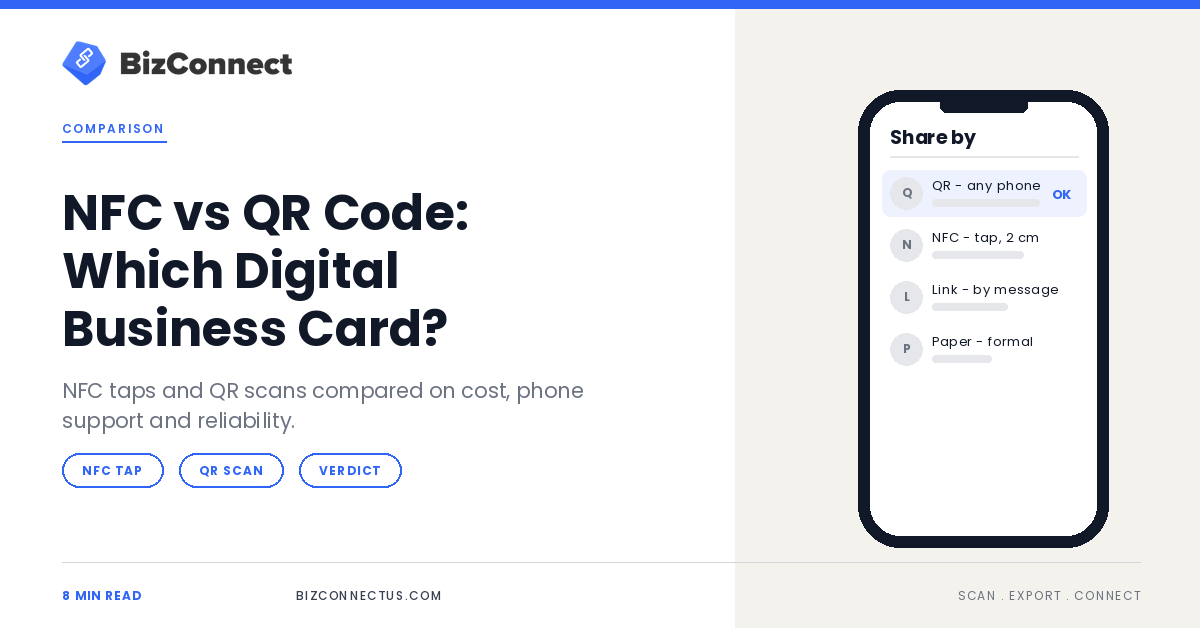
Every digital business card has to solve the same problem, getting your details onto someone else’s phone without typing, and there are two main ways to do it. NFC cards share a link when someone taps a phone against them. QR codes share the same kind of link when someone points a camera at them.
Both work, both look modern, and both are sold as the future of networking. They fail in different situations, though, and the right choice depends on where you meet people, who you meet and what you are willing to carry.
Quick answer
For most people a QR code is the better default: every modern phone camera can read one, it costs nothing, and it works on a screen, on paper or in an email signature. NFC is a nice extra for frequent in-person networking, but it needs a physical chip card, a phone with NFC switched on and a tap at very close range.
Key takeaways
- NFC works by tapping; QR works by pointing a camera.
- NFC needs a chip card or tag and a compatible phone; QR needs only a camera.
- QR codes travel anywhere you can show an image: screens, print, slides and signatures.
- Both usually open the same thing, a link to your digital card, so the card behind them matters most.
How an NFC business card works
NFC, or near-field communication, is a short-range radio standard. The NFC Forum’s technical overview describes it as working at 13.56 MHz with a typical range of up to about 2 cm, which is why you have to tap rather than wave. An NFC business card is a card or sticker with a small chip that stores a link, usually to your online profile.
On iPhone, XS and later models read NFC tags in the background without opening an app, with some exceptions: reading pauses while the camera or Apple Pay is in use and in airplane mode. Apple’s notes on background tag reading list them, and they explain a few failed taps at events. On Android, NFC is common but has to be switched on in settings.
How a QR code business card works
A QR code business card is simply a code that points to your digital card. Anyone can read it with the camera they already have. On iPhone that means the Camera app or the Code Scanner in Control Center, as Apple’s QR code guide explains, and Android cameras and Google Lens read them too.
Because a QR code is just an image, it goes anywhere: your phone’s screen, the back of a paper card, a conference badge, an email signature or the last slide of a talk. We cover the practical side in how to create and share a digital card by QR or link.
NFC vs QR code compared
| Factor | NFC card | QR code |
|---|---|---|
| What the other person does | Taps their phone on your card | Points their camera at the code |
| Hardware you need | A chip card, sticker or tag | None: a screen or paper |
| Phone support | NFC phone with NFC switched on | Any modern phone camera |
| Range | About 2 cm | Across a table, from a screen or slide |
| Works in print and online | No | Yes |
| Cost | Usually a paid card or tag | Free |
| If your details change | Update the linked profile | Update the linked profile |
Notice the last row. In both cases the chip or code only stores a link, so your details can change without reprinting anything, provided the link points to a card you can edit.
When NFC is worth it
NFC earns its place for people who meet face to face constantly: sales reps on daily visits, recruiters at campus fairs, founders at back-to-back events. A tap is quick, it feels a little special, and it works when the other person’s camera struggles with glare. If your brand leans premium, a well-made NFC card is also a talking point.
The weak spots are cost, compatibility and dependence on a physical object. Lose the card and you lose the tap; meet someone with NFC switched off and you fall back to a QR code anyway. For teams that is a lot of hardware to buy and reissue, something to weigh alongside our notes on keeping every employee’s digital card on brand.
What sits behind the tap or the scan
Whichever trigger you choose, people land on the same thing: the online page of your digital business card. That page does the real work, so give it the details a paper card carries and a little more. Name, title, company, mobile, work email and website come first, followed by one or two links that help people place you, such as LinkedIn or a booking page, and a photo or logo so they remember the face.
Keep it short enough to read on a phone in a noisy hall, and make sure the save-contact button is obvious. A beautiful profile that takes three taps to save loses to a plain one that saves in one.
QR mistakes that cost you contacts
Most failed scans come from a handful of avoidable mistakes. Codes printed too small, or in low contrast such as grey on silver, struggle in dim light. Codes that encode your details directly, rather than a link, can never be updated. And cards with only a QR code and no printed name give people nothing to fall back on when a camera refuses to focus. Print the code at a sensible size with a clear margin, point it at a link you control, and keep the essentials in plain text beside it.
How to set up a QR digital business card in BizConnect
- Install BizConnect and sign in.
- Open the QR Code option on the home screen.
- Fill in your name, title, company, phone, email and links.
- Save, then share the card through WhatsApp, email or SMS, or show the QR on your screen.
- Add the same QR to the back of your paper card and to your email signature.
The app also reads other people’s QR codes and saves them as contacts, so the exchange works in both directions, as the short walkthrough below shows.
“An NFC tap and a QR scan open the same link. Choose the one your contacts can actually use.”
— BizConnect
The verdict: start with QR, add NFC if you need it
If you are choosing one format, choose QR: it is free, universal and works everywhere you share anything. Add NFC later if you network in person often enough for the tap to matter. Whichever you pick, keep a few paper cards for formal moments, and see our guide to card etiquette for when each lands best. A QR digital business card in BizConnect is free to set up on Google Play.
TL;DR
- NFC shares by tap and needs a chip card; QR shares by camera and needs nothing.
- QR works on screens, paper and email; NFC works only in person.
- Both point to a link, so keep the card behind them up to date.
- Start with QR; add NFC if you network face to face daily.
Frequently Asked Questions
Can Android phones read NFC business cards?
Most mid-range and premium Android phones include NFC, but it has to be switched on in settings, and some budget models leave it out entirely. If a tap does nothing, check the setting first, then try holding the phone still against the card for a second. If it still fails, fall back to the QR code printed on the same card.
Can I put a QR code on my paper business card?
Yes, and it is one of the most useful upgrades you can make. Print the QR for your digital card on the back, at least 2 cm wide with a clear margin around it and strong contrast against the background. Test it with a couple of different phones in normal indoor light before you order a full print run.
Do NFC business cards need an app?
Usually not for the person receiving. Recent phones open the stored link automatically and your digital card loads in the browser, where they can save your details. You may need the vendor’s app or website to program the card in the first place, or to change where its link points later on.
Which is more secure, NFC or QR?
Neither stores much, because both normally hold a link to your card rather than your details. The real risk is what that link shows, so keep anything you would not hand to a stranger off your public card. Use a provider that lets you change or disable the link if a card is lost or you change jobs.
What are the different types of digital business cards?
The main types are QR-code cards, NFC cards and plain links sent by message or email. Many apps combine them with wallet passes and email-signature versions. All of them point to the same online profile, so the type is really about how people receive your card, not what is on it. Most people end up using two or three.