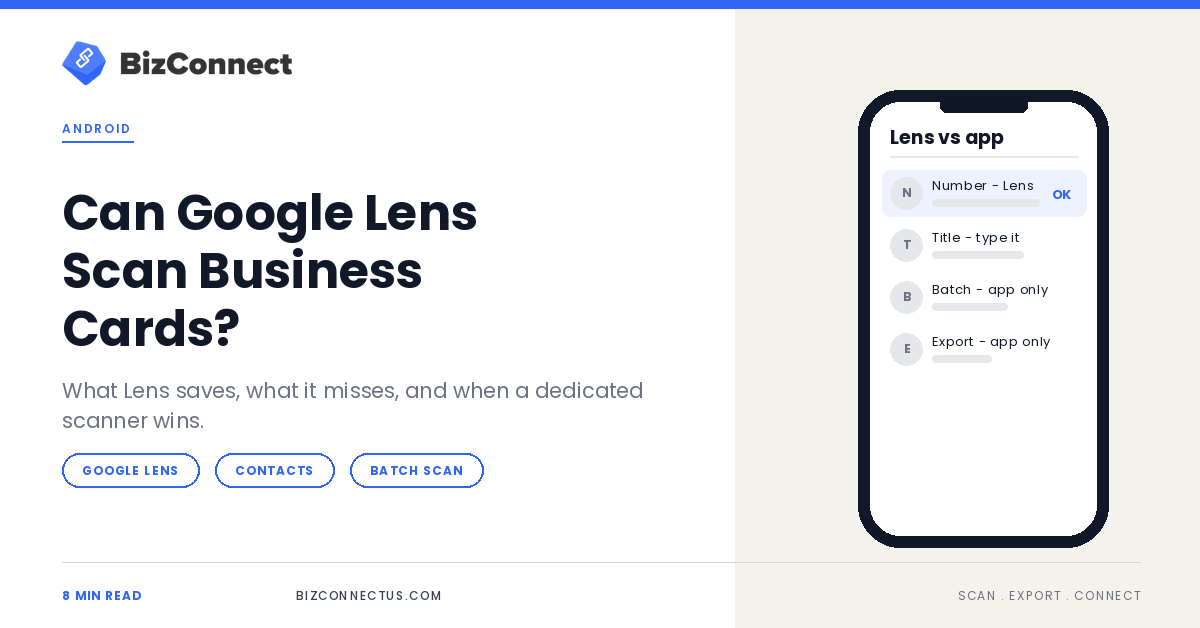
If you use Android, you already carry a capable text reader: Google Lens. Point it at a card and it can pick out the phone number, the email and the address. So do you need a separate business card scanner at all? For one card, maybe not. For a stack from an event, the answer changes quickly.
Here is what Lens does with a business card, the steps to save one as a contact, and the clear signs that you have outgrown it.
Quick answer
Yes, Google Lens can read a business card. Google’s help page says that for a business card, Lens lets you save the phone number or address to a contact, and you can copy any other text. It works one photo at a time and does not organise, tag or export contacts, which is where a dedicated business card scanner earns its place.
Key takeaways
- Lens is built into Google Photos, the Google app and Assistant on most Android phones.
- For business cards, Lens offers to save the phone number or address to a contact.
- Other details, such as the job title and company, need copying or typing.
- A dedicated scanner fills every field, handles batches and exports to your CRM.
What Google Lens does with a business card
Lens is Google’s visual search tool, and it is already on most Android phones through Google Photos, the Google app and Google Assistant. Google’s Lens help page lists what it does with different photos; for a business card, the action is to save the phone number or address to a contact. You can also tap and select any other text to copy it.
That makes Lens genuinely handy for the occasional card: a supplier’s number at a shop counter, a plumber’s card on a noticeboard. It is free, quick and needs nothing extra installed.
How to save a business card with Google Lens
- Take a clear, flat photo of the card in good light.
- Open the photo in Google Photos and tap Lens.
- Tap the suggested action to save the phone number or address to a contact.
- Open the new contact and copy in the name, company, job title and email from the card.
- Save the contact, then add a label so you can find it later.
The contact lands in whichever account your phone saves to by default, usually your Google account, which keeps it in sync across devices. Google’s Contacts help explains how contacts saved to your Google Account sync, and how to edit a field you need to fix afterwards.
Getting better results from Lens
Lens reads what the camera gives it, so the photo matters. Lay the card flat on a plain, dark surface, shoot from directly above rather than at an angle, and avoid overhead lights that bounce off glossy finishes. Let the card fill most of the frame, and if the details are tiny, move closer instead of zooming in.
For two-sided cards, take two photos and run Lens on each, then merge the details into one contact yourself. If a number is split across two lines, check it carefully before saving; that is where copied text most often picks up a stray character.
What happens to contacts saved with Lens
A contact created through Lens looks like any other contact you typed in. Nothing records that it came from a business card, which event it belongs to or what you talked about, and the card photo stays in your gallery rather than with the contact. Six months later, that context is usually what you are missing.
If you stick with Lens, add a label for each event as you save, type a short note into the contact, and clear out the card photos once the contacts are checked, so your gallery does not fill up with cards you have already dealt with.
Where Lens falls short for regular networking
Lens treats every card as a one-off. There is no batch mode for a stack of cards, no tag for the event where you met, and no record of which contacts came from cards at all. After a busy conference that means forty photos, forty Lens sessions and a lot of copying fields by hand.
Two-sided cards, mixed languages and cards with two phone numbers make it slower still, because you decide what goes where. A scanner app reads the whole card into labelled fields, lets you add the back, and keeps the card image with the contact so you can check a detail months later.
Lens vs a dedicated scanner app
| Task | Google Lens | Business card scanner app |
|---|---|---|
| Read text on a card | Yes | Yes |
| Fill every contact field | Phone or address; the rest is manual | All fields in one pass |
| Handle 30 cards in a row | One photo at a time | Scan, then review the batch |
| Group by event or tag | No | Yes |
| Export to Excel, Outlook or a CRM | No | Yes |
| Follow-up reminders | No | Yes |
The gap is not about reading quality. Lens reads clear text well; what it lacks is everything that happens after the text is read, from sorting and tagging to exporting and following up. Those steps are where most of the time goes after an event.
If your goal is simply to get cards into Google Contacts, our step-by-step on scanning business cards to Google Contacts the right way shows the cleanest route, including how to avoid duplicate entries.
“Lens is a great reader. It just isn’t a filing system.”
— BizConnect
When Lens is the right tool
Lens shines when the card is not really a networking contact: a delivery service’s number on a flyer, a shop’s card at the till, or a card someone forwards as a photo in a chat. In those cases you want one detail quickly, and there is no event to tag or follow-up to plan.
The best business card scanner setup on Android
Most people end up using both. Lens stays useful for the odd number on a poster or a card someone sends as a photo. For the cards you collect on purpose, a dedicated app does the heavy lifting: BizConnect reads cards in more than 30 languages, groups them by event and exports to Google Contacts, Outlook, Excel, Salesforce, HubSpot and Zoho. Our guide to scanning and saving cards fast on Android covers the setup.
A sensible routine is to use Lens when you have a single card and no time, and to scan everything else in the app at the end of the day, tagged with the event name. That way nothing is lost, and nothing is typed twice.
If you are weighing free options, read the hidden limits of free scanner apps before you commit. In short, Lens can scan a business card one detail at a time, but if cards are part of how you find work, a dedicated business card scanner pays for itself in the first busy week. BizConnect is free on Google Play.
TL;DR
- Google Lens reads business cards and can save a number or address to a contact.
- Everything else is copy and paste, one card at a time.
- No batches, tags, exports or reminders.
- Use Lens for one-offs and a dedicated scanner for events.
Frequently Asked Questions
Does Google have a business card scanner?
Not as a separate app. Google Lens, built into Google Photos and the Google app, recognises business cards and can save a phone number or address to a contact. Google Drive can also turn a photo into text. Neither creates a complete, organised contact list with tags and exports, which is the job a dedicated scanner app does.
How do I scan a business card on Android without installing an app?
Use Google Lens from Google Photos or the Google app, which come pre-installed on most Android phones. Photograph the card, open Lens, save the number or address to a contact and copy the remaining details in by hand. It is fine for one card; for a stack, a scanner app saves a lot of typing.
Can Google Lens read business cards in Hindi or other languages?
Lens recognises text in many languages and can translate it, so it can usually read a bilingual card. Deciding which line is the name and which is the company is still up to you, which is where a scanner that maps fields across 30+ languages saves time, especially on cards printed in two scripts.
Is Google Lens free?
Yes. Lens is free in Google Photos, the Google app and Chrome, with no paid tier to unlock. Some features vary by country, though; Google notes, for example, that shopping results appear only in certain countries. Reading text and saving a number from a business card works wherever Lens is available on your phone.
Can I scan a business card into Excel on Android?
Not with Lens alone, because you would copy each field into a spreadsheet by hand. A scanner app that exports to Excel builds the sheet for you, with one row per contact and consistent columns for name, title, company, phone and email, which makes mail merges and CRM imports much easier.