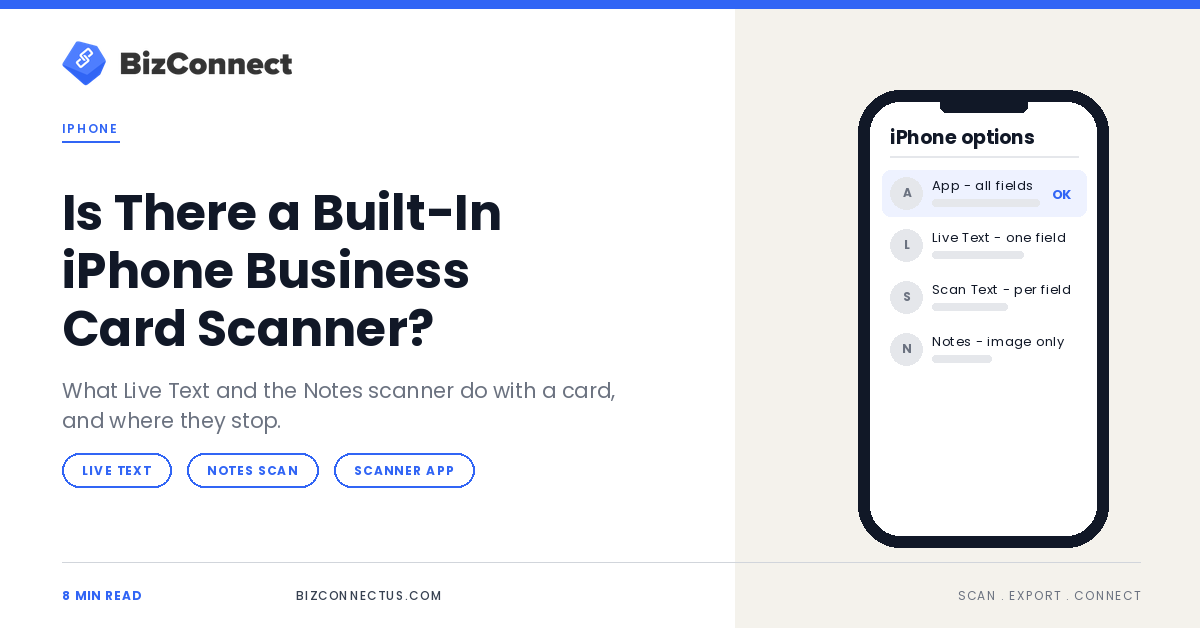
Search for an iPhone business card scanner and Google’s People Also Ask box asks the obvious question first: does the iPhone already have one? Sort of. iOS can read the text on a card, scan it as a document and even pull a single phone number into Contacts. What it does not do is turn the whole card into a finished contact in one step.
Below is exactly what the built-in tools do, where your scans end up, and the point at which a dedicated scanner app starts saving you real time.
Quick answer
No, iOS has no dedicated business card scanner. Live Text can read a card through the Camera or Photos app and offer to add a phone number or email to Contacts, and Notes can scan the card as a document image. Building a complete contact, with name, title, company, phone and email, still means filling the fields yourself, which a scanner app does for you.
Key takeaways
- Live Text reads text on cards in the Camera and Photos apps on iPhone XS, XR or later with iOS 15 or later.
- Tapping a detected number or email can offer Add to Contacts, one field at a time.
- Notes scans a card as a document image saved inside the note, not as a contact.
- A scanner app fills every field in one pass and keeps the card image with the contact.
What Live Text can do with a business card
Live Text is Apple’s built-in text recognition. Point the Camera at a card, tap the Live Text button, and the text on the card becomes selectable, so you can copy it, call a number or start an email. Apple’s Live Text guide notes that it needs an iPhone XS, iPhone XR or later on iOS 15 or later, and that depending on the image you may see an option to Add to Contacts.
That last part is the closest iOS gets to card scanning. Tap the phone number, choose Add to Contacts, and the number goes into a new or existing contact. The name, job title, company, address and website are still yours to type or paste, field by field.
The Notes scanner: a picture, not a contact
The Notes app has a document scanner that crops and straightens whatever you point it at, and it handles cards well. The result, though, is an image stored inside a note. Apple’s guide to scanning documents in Notes walks through the flow: open a note, tap the attachment button, choose Scan Documents, and the scan stays in that note.
That answers another common question: where do scanned business cards go on an iPhone? If you used Notes, they live in the note where you scanned them, separate from your address book. Ten cards scanned this way give you ten pictures and zero contacts.
Built-in tools vs a scanner app
| Method | What it reads | Where it saves | Best for |
|---|---|---|---|
| Live Text in Camera or Photos | Text you select; tappable numbers and emails | Wherever you paste; numbers can go to Contacts | One quick number |
| Scan Text in a contact field | One field at a time | Directly into Contacts | Adding a missing detail |
| Notes document scan | The whole card as an image | Inside a note | Keeping a visual record |
| Scanner app | Every field in one pass | Contacts, plus export options | Regular networking |
Each built-in method solves one slice of the job. Live Text is quickest for a single number, Scan Text fills one field at a time, and Notes keeps a picture. None of them joins the slices together, so the work of assembling a complete contact still falls to you.
How to save a business card to iPhone Contacts without an app
- Open the Camera app and point it at the card until the Live Text button appears.
- Tap the Live Text button, then tap the phone number and choose Add to Contacts.
- In the new contact, tap the Name field and choose Scan Text from the menu to capture the name from the card.
- Repeat Scan Text for the company, job title and email fields.
- Add a note about where you met, then tap Done.
It works, and for one card at a lunch meeting it is perfectly fine. It takes a few minutes per card, though, and that gets old quickly when there are twenty of them.
Why the built-in route breaks down at events
Events expose every weak spot at once. Lighting in exhibition halls is uneven, many cards are glossy or printed in thin, stylised fonts, and you are scanning between conversations rather than at a desk. Each card needs several separate Live Text and Scan Text steps, and none of them records where you met the person or what you discussed.
The bigger cost shows up a week later. Contacts added field by field arrive without a common tag, so you cannot pull up everyone from one show, and the card images sit in Photos or Notes, disconnected from the contacts they belong to. Following up becomes a hunt rather than a list.
There is also no safety net for mistakes. If Live Text misreads a digit, nothing flags it, and you only find out when a call fails. Most scanner apps keep the card image with the contact, so you can check each field against it before you save.
“Live Text reads the card. You still have to build the contact.”
— BizConnect
When a dedicated iPhone business card scanner makes sense
The break point is volume and follow-up. A scanner app reads every field in one pass, lets you add the back of a two-sided card, keeps the card image attached for checking and files contacts by event. If you already use one, our guide to syncing scans with Apple Contacts and Mail shows how to keep everything in the address book your iPhone already uses.
Image quality matters as much as the app, so it is worth reading how to fix blurry scans and bad reads before your next event. And if you are choosing an app for a busy show, see which iPhone scanner apps hold up at trade shows.
When you compare apps, look for a few things the built-in tools lack: every field captured in one pass, two-sided cards saved to one contact, saving to Apple Contacts so the person appears in Phone and Mail, exports to the CRM or spreadsheet you already use, and tags or groups for each event. An iPhone business card scanner that covers those five saves you the most time after a busy week.
The verdict
Your iPhone can read a business card perfectly well; it just stops before the contact is finished. For the occasional card, Live Text plus Scan Text is free and good enough. For regular networking, an iPhone business card scanner app saves the typing, keeps every field together and adds the follow-up tools iOS does not have. BizConnect is free on the App Store if you want to compare the two on your next card.
TL;DR
- iOS has no dedicated business card scanner.
- Live Text can add a number or email to Contacts; other fields are manual.
- Notes saves card scans as images inside a note.
- A scanner app builds the full contact in one pass.
Frequently Asked Questions
Can I add a business card to my iPhone contacts from a photo someone sent me?
Yes. Save the photo to Photos, open it and tap the Live Text button, then tap the phone number or email to see the Add to Contacts option. It works on screenshots and saved images as long as the text is sharp. The remaining fields, such as name, title and company, still need typing or Scan Text.
Is there a free business card scanner app for iPhone?
Several scanner apps are free to download, with paid upgrades. BizConnect is free on the App Store with Premium available by subscription, so you can test it on your own cards before paying anything. Before an event, check what the free tier limits, such as the number of scans, exports or team features.
How do I find business cards I scanned in Notes?
Open Notes and look in the note where you scanned the card. Giving each note the person’s name or company as its title makes cards easy to find later with search, and keeping all your card scans in one folder stops them mixing with shopping lists and meeting notes. Moving them into contacts is still a manual job.
Can my iPhone scan both sides of a business card?
The Notes scanner can capture each side as a separate page in the same scan, which keeps them together as one document. Live Text only reads what is in front of the camera, so you handle each side separately. Most scanner apps let you add the back of the card to the same contact, so nothing on either side gets lost.
Does Live Text work with business cards in other languages?
Live Text supports a set of languages that Apple expands over time, and you can switch it on for all supported languages under Settings, General, Language & Region. Cards in scripts outside that list will not be recognised. That is where a scanner covering 30+ languages helps, particularly with bilingual cards from international events.