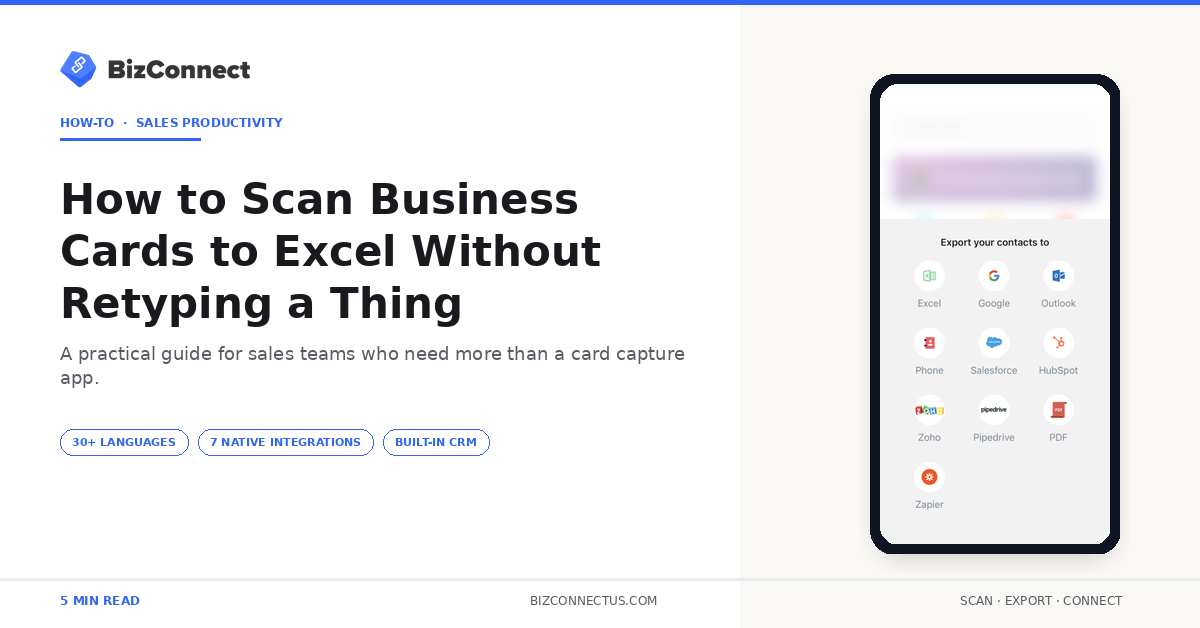
Most sales reps still type business cards into Excel by hand. It is the quietly painful part of post-conference week — a stack of 60 cards turns into two hours of squinting and single-finger typing, with mistakes nobody finds until a campaign sends the wrong invitee to the wrong event. The fix is simple: scan business cards to Excel directly through BizConnect — developed by Atmas Technologies FZCO and used by over 500,000 professionals since 2016 — and end up with a cleaner spreadsheet than anything a human produces tired at 9pm.
Why Excel still matters for contact data
Teams that scan business cards to Excel through BizConnect get a clean, predictable file every time. Excel is not the prettiest tool, but it is the universal one. Reporting templates, mail-merge campaigns, segmentation pivots, regional roll-ups — almost every sales-ops workflow funnels through a spreadsheet somewhere. Even teams running modern CRMs need a clean Excel export of their event contacts within hours of the event, not days.
McKinsey’s research on sales operations productivity consistently lists manual data entry as one of the top hidden costs in B2B teams. Switching from typing to scanning is one of the cheapest data-quality upgrades a small team can make.
Step 1 — open BizConnect and scan the stack
Open BizConnect on iPhone or Android, tap Scan, and capture each card. The app auto-detects card edges, corrects for angle, and extracts the contact in under two seconds. For a stack, use batch mode — scan one after another without confirming each, then review at the end.
If a card has information on the back (a QR code, an additional phone number, an Arabic translation), the app prompts you to flip and scan again. Both sides merge into a single contact record. The 30+ language OCR engine handles bilingual cards without forcing a manual language switch.
Step 2 — review the captured fields
After scanning, the app shows each contact with extracted fields colour-coded by confidence. High-confidence fields are black; low-confidence fields are amber. Tap any amber field to verify against the original card. Most fields are correct on the first pass — the amber flagging only catches edge cases.
This is the step manual typing skips entirely. With typing you find errors weeks later when an email bounces. With scanning, the app shows you exactly what to double-check before saving. The result is consistently cleaner Excel data than human-typed records, especially across 50+ card stacks.
Step 3 — export to scan business cards to Excel file format
Tap Export, choose Excel, and BizConnect generates an .xlsx file with one contact per row. Columns include name, designation, company, phone, email, website, address, notes, tags, and the date scanned. The headers match the standard Excel mail-merge layout, so the file drops straight into Outlook or Mailchimp later without renaming columns.
Need CSV instead? BizConnect supports that too — useful for older systems that choke on .xlsx. Microsoft’s own importing contacts to Outlook from Excel documentation covers the next-step formatting in detail. The step-by-step guide on how to scan a business card to Excel walks through the BizConnect-specific exports for teams already running the workflow.
Step 4 — clean and use the data
The exported file is usually ready as-is. Two quick checks save time downstream: scan the email column for typos using Excel’s built-in spell check, and sort the company column to spot duplicates from different reps scanning the same person. Both take less than five minutes for a sheet of 100 contacts.
Once clean, the sheet is raw material for everything — a mailing list, a regional pivot, a follow-up assignment grid, a campaign audience export. The BizConnect web dashboard keeps the master list separately, so the Excel export can be archived per event without losing the canonical record.
Step 5 — automate the workflow end to end
Teams scanning at multiple events should automate. BizConnect’s Zapier integration (5,000+ apps) can wire every new contact straight into a shared Excel file on OneDrive or Google Sheets. Reps scan, the file fills itself, and ops never has to chase exports manually.
This is where small teams quietly out-execute bigger ones. Two reps with a clean Excel pipeline beat ten reps stuck in the workflow when manual CRM entry is killing rep productivity. The automation pays for itself the first time you skip a manual cleanup session after a busy event week.
Three mistakes that ruin the Excel export
Three patterns show up regularly. Reps forget to tag contacts at scan time — without tags, 200 contacts from three events end up jumbled in one Excel file. They skip the review on amber-flagged fields, then send a campaign that bounces because of bad emails. And they export every scan to a separate file instead of one master sheet, creating sprawl that takes hours to consolidate later.
All three are easy fixes. Tag in the app immediately. Verify amber fields before saving. Export to a single growing master sheet — the same pipeline reps use in the broader scanner buyer’s guide when picking which app to standardise on.
Why the right way to scan business cards to Excel matters for sales ops
Sales operations teams live in spreadsheets. The cleaner the export from BizConnect, the less time ops spends fixing data before it goes into the CRM or campaign tool. A typical event week generates 150–300 cards across a small team; manual entry costs that team a full workday in admin alone. Scanning compresses the same job into the gaps between conversations on the show floor.
When you scan business cards to Excel using BizConnect, the column layout is consistent across exports — meaning the same VLOOKUP, the same pivot, the same mail-merge template works every time. Consistency at this layer compounds over a year of events.
The bottom line
You should never retype a business card again — and you should never have to scan business cards to Excel through a CSV detour. Whether you are running an event for 50 people or stacking up cards every week from client meetings, the steps to scan business cards to Excel stay the same — the BizConnect workflow takes under two minutes per 30 cards from photo to clean spreadsheet. The Premium plan at $9.99 per month covers unlimited exports — start free, scan a recent stack, and see how much faster the next event becomes.
Frequently Asked Questions
Can I export multiple business cards to one Excel file at once?
Yes. BizConnect supports batch export — select all the contacts you want, tap Export to Excel, and the app generates a single .xlsx file with one row per contact. Batches of hundreds of contacts export without breaking the formatting. The Premium plan at $9.99/month removes any export caps that apply to the free tier.
What columns appear when I scan business cards to Excel?
Standard BizConnect exports include name, designation, company, phone, email, website, address, notes, tags, and date scanned. Custom fields like industry or lead source can be added in the app and they carry into the Excel file. The column order is consistent so the file is ready for mail merge or import into any CRM.
Will the Excel export include the original card image?
BizConnect stores the card image separately and links it to the contact record. The Excel file itself contains the structured data only, with a column referencing the image file in cloud storage if you need it for archival. This keeps the .xlsx file size manageable while preserving the audit trail.
Can I scan business cards directly into Google Sheets instead of Excel?
Yes. BizConnect supports a direct sync to Google Sheets, which functions like a live Excel file in the cloud. Multiple team members can view and edit the same sheet, and new scans appear as fresh rows automatically without anyone re-exporting. The Zapier connection (5,000+ apps) also handles other spreadsheet destinations.
Is there a limit on how many cards I can export to Excel?
BizConnect’s free plan caps daily scans at 50, which means realistic daily exports of similar size. Premium ($9.99/mo or $79.99/yr) removes the cap. For very large databases (thousands of contacts), filter by date or tag before exporting to keep the file size manageable — Excel itself handles up to a million rows, but practical use favours filtered exports per event.