In India, a visiting card is as likely to arrive on WhatsApp as across a table. Someone asks for your details, you send a photo of your card, and it disappears into their gallery. Google’s People Also Ask box reflects this: how to share a visiting card digitally sits right next to questions about the best visiting card scanner. The two belong together, because sending and saving are two halves of the same exchange.
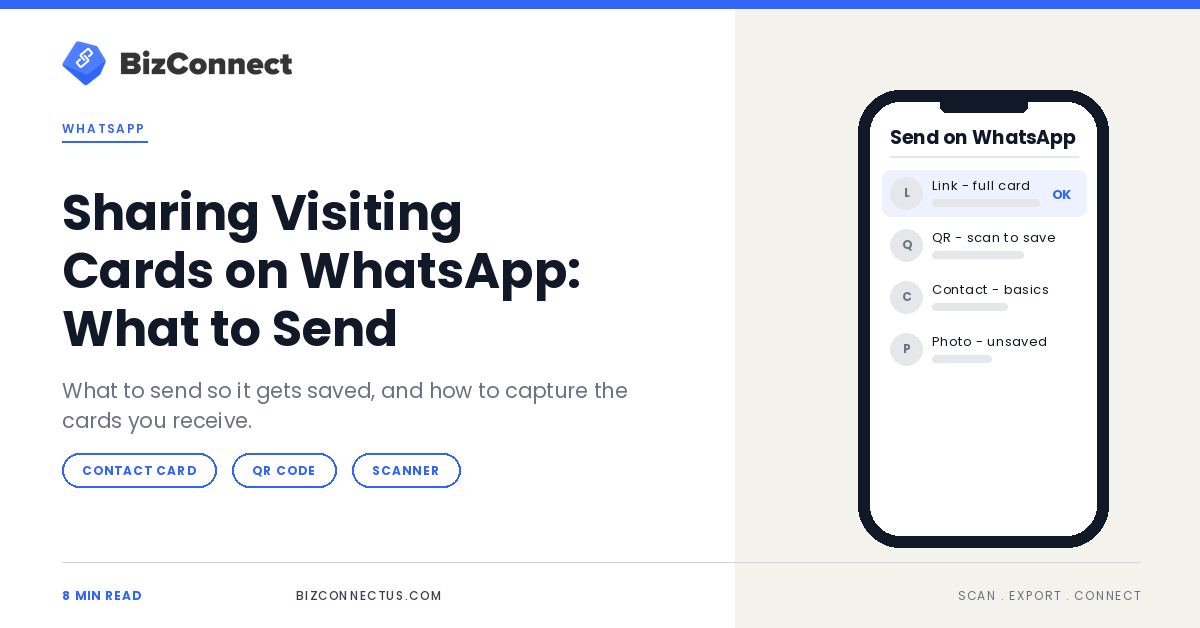
Here are the four ways to share your card on WhatsApp, which one actually gets saved, and how to handle the cards people send you.
Quick answer
Don’t send a photo of your visiting card; send something that saves as a contact. On WhatsApp that means a contact card, shared from the attachment menu, or a link to your digital visiting card, ideally with a QR code. For physical cards you receive, scan them with a visiting card scanner app so they become contacts instead of pictures.
Key takeaways
- A photo of a card is the easiest thing to send and the hardest to save.
- WhatsApp’s contact sharing sends a card the recipient can save in one tap.
- A digital visiting card link carries more, such as title, company, website and social links, and stays current.
- Scan the paper cards you collect so they don’t pile up as photos.
Four ways to share your visiting card on WhatsApp
| What you send | What they get | Saves in one tap? | Stays up to date? |
|---|---|---|---|
| Photo of your paper card | An image in their gallery | No | No |
| WhatsApp contact card | Your name and number as a contact | Yes | No |
| Digital visiting card link | A full card page in the browser | Yes, from the card | Yes |
| QR code image | A code that opens your card | Yes, after scanning | Yes |
The photo wins on convenience and loses on everything else. It is the reason so many phones hold dozens of card pictures and none of the contacts behind them.
Sending a contact card from WhatsApp
WhatsApp can share a contact directly: open the chat, tap the attachment button, choose Contact and pick your own entry. The other person sees a contact card they can save straight into their phone. Behind the scenes it is a standard vCard, the same format address books use to exchange contacts.
It is quick and reliable, but it only carries what is saved in your phone’s contact entry, which for most people is just a name and a number. There is no logo or design, and when your number changes, the old card keeps circulating.
WhatsApp also has a personal QR code that lets someone add you as a contact by scanning it; WhatsApp’s help page on QR codes shows where to find yours. It shares your WhatsApp number only, so it works best alongside a full digital card rather than instead of one.
Sharing a digital visiting card instead
A digital visiting card is a page with everything a paper card carries, plus clickable links. You send it as a link on WhatsApp; they open it, tap save and get a full contact. Because it lives online, you update it once and every future share is current. We cover the basics in how to create and share a digital card by QR or link, and the choice between tap and scan in our NFC vs QR comparison.
It also works the other way round: when someone shares a digital card link with you, open it and save the contact from the card page, so it lands in your phone with every field filled.
How to share your BizConnect card on WhatsApp
- Open BizConnect and tap the QR Code option on the home screen.
- Fill in your name, designation, company, mobile, email and website.
- Save the card, tap share and choose WhatsApp.
- Pick the contact or group and send; they receive your card as a link.
- Save the QR image too, so you can share it in chats and print it on your paper card.
If you run a business account, the WhatsApp Business app adds a QR code that opens a chat with your business; WhatsApp’s guide to QR codes for WhatsApp Business explains how it works. That code starts a conversation, while your digital card tells people who you are.
WhatsApp manners for sharing cards
A few habits keep card-sharing welcome rather than annoying. Send your card in a one-to-one chat after you have met, not to every member of a large group. If you are introducing two people, send each a short line of context with the card so they know why it matters. And reply to cards you receive with yours, so the exchange is complete in one thread.
For trade fairs and counters, print your QR on a small desk standee or the back of your paper card. Visitors can scan it while you talk, and you can scan their paper card in return, so neither of you leaves with just a photo.
A message that gets your card saved
What you write around the card matters as much as the card. A short note such as “Good to meet you at the expo today. Here is my card with my direct number; happy to share the price list when you are ready” tells the other person who you are, why the card matters and what happens next.
Send it the same day, while they still remember the conversation. If they reply with their own card as a photo, save it as a contact straight away rather than leaving it in the chat, where it will soon be buried.
Saving cards you receive with a visiting card scanner
The other half of the exchange is the cards that come to you. When someone sends a photo of their card, you can pull out the number with Google Lens on Android or Live Text on iPhone; our walkthrough of whether Google Lens can scan business cards shows how far that gets you. For paper cards collected at meetings and trade fairs, a visiting card scanner is faster: point the camera, check the fields, save.
BizConnect scans visiting cards in more than 30 languages, including Hindi, and reads the QR codes on digital cards too, so both formats end up in one contact list. Small business owners will find a fuller picture in our guide for small business owners in India.
Whichever way a card arrives, tag the contact with where it came from, such as the trade fair, a referral or a WhatsApp group. When you review your pipeline later, you will know which channels actually bring you customers.
“A photo of a visiting card gets looked at. A contact gets called.”
— BizConnect
The simple rule
Share something that saves, and save what you receive. Send your digital visiting card as a link or QR, use WhatsApp’s contact sharing when only a number is needed, and run every paper card through a visiting card scanner the same day. BizConnect is free on Google Play for Android.
TL;DR
- Photos of visiting cards rarely become contacts.
- WhatsApp contact cards save in one tap but carry only basics.
- A digital card link or QR carries everything and stays current.
- Scan the paper cards you receive the same day.
Frequently Asked Questions
Can I create a free QR code for my visiting card?
Yes. A digital card app such as BizConnect generates a QR code for your card at no cost, and because it points to your online card, it keeps working when your details change. Be wary of generators that encode your details directly into the code, since that code can never be updated once printed.
Is it safe to share my visiting card in WhatsApp groups?
Treat it like handing out cards at an event: anyone in the group can save it and forward it on. Share the work number and email you are happy to publish, keep your personal number off, and use a digital card you can update or replace if something changes later.
How do I save a contact someone shared on WhatsApp?
Tap the contact card in the chat and choose the option to save it or add it to your contacts. It is stored in your phone’s address book like any other contact, so it syncs with your Google or iCloud account if you use one. Add a note on where you met while you remember.
Can I scan a visiting card photo someone sent me?
Partly. Save the photo, then open it in Google Lens on Android or use Live Text on iPhone to grab the phone number or email and add it to a contact. For a complete contact with name, designation and company, ask the sender for a contact card or a digital card link instead.
What should a digital visiting card include?
Your name, designation, company, mobile, work email, website and city, plus one or two links that help people know you, such as LinkedIn or a booking page. Keep to what you would print on a paper card, and add a photo or logo so people recognise you when your name comes up later.