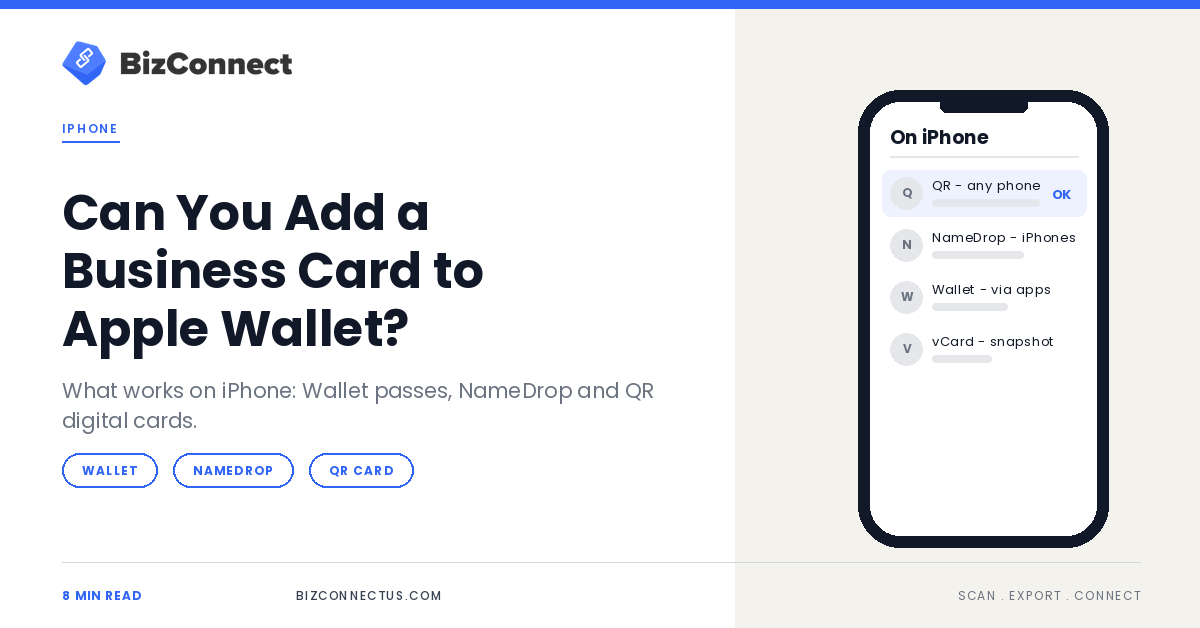
One iPhone question keeps coming up in Google’s People Also Ask box: can I add a business card to my iPhone Wallet? Not natively. Apple Wallet holds passes, and a business card is not one of Apple’s built-in types. There are still three good ways to carry and share your card on an iPhone, and a good business card app for iPhone covers the one most people need.
Here is what each option does, who can receive it, and how to set up the one that works with every phone.
Quick answer
Apple Wallet has no built-in business card, but some digital business card apps can add a Wallet pass that shows your QR code. Your iPhone can also share your contact card with NameDrop or AirDrop. For a card anyone can open, including people on Android, a QR or link-based digital card from an app is the most reliable choice.
Key takeaways
- Apple Wallet stores passes such as tickets and boarding passes; business cards get in only through third-party apps.
- NameDrop shares your contact card between iPhones and Apple Watches held close together.
- Contact cards can also travel by AirDrop, Messages or WhatsApp as a standard vCard.
- A QR or link digital card works for iPhone and Android alike.
What Apple Wallet actually holds
Apple Wallet is built around passes: boarding passes, event tickets, coupons, loyalty and membership cards. Apple’s Wallet developer overview describes how businesses create these passes for their customers. There is no add-business-card button, because Apple does not offer a business card pass of its own.
Some digital business card apps fill the gap by generating a Wallet pass with your QR code on it, so you can pull it up quickly at an event. It is a convenient shortcut, but it is only a container for your QR code; the card behind the code still lives in the app that made it.
If you go the Wallet route, test the pass before an event: open it in a dim room, check that the QR code scans from another phone, and make sure it opens your current card rather than an old version.
NameDrop: Apple’s built-in contact swap
What Apple does have is NameDrop. Bring two iPhones close together and each person can choose to share their contact card. Apple’s NameDrop safety guide notes that it needs iOS 17.1 or later on both devices, and that it shares only your name, the phone number or email you choose and your Contact Poster, not your address or birthday.
In practice, you hold the tops of the two iPhones close together. When the prompt appears, you can choose to share your card and receive theirs, or to receive only, collecting the other person’s details without sending yours. Moving the phones apart or locking your iPhone before the transfer finishes cancels it.
If you would rather not use it at all, open Settings, tap General, then AirDrop, and turn off Bringing Devices Together. You can still share your contact card through AirDrop or a message whenever you choose.
NameDrop is fast and private, but it only works between Apple devices. In most rooms at least some of the people you meet use Android, and NameDrop simply does not exist for them.
Your options on iPhone, compared
| Option | Who can receive it | Needs an app? | Updates when details change? |
|---|---|---|---|
| Wallet pass from a card app | Anyone who scans the QR on it | The app that made the pass | Yes, if it links to an editable card |
| NameDrop | iPhone and Apple Watch users only | No | No: they get a snapshot |
| Contact card by AirDrop or message | Anyone, as a vCard file | No | No: they get a snapshot |
| QR or link digital card | Anyone with a camera or browser | Only for you, to create it | Yes |
The snapshot column matters more than it looks. A contact card sent by NameDrop or AirDrop is a copy frozen at the moment you shared it, so a new number or title never reaches the people who already have you. A digital card behind a QR code always shows your latest details, because the link opens the current version.
For most people the answer is a mix: NameDrop for colleagues and friends on iPhone, and a QR card for everyone else. The two work side by side, because NameDrop shares your contact card and the QR opens your digital card, and both can carry the same details.
What to look for in a business card app for iPhone
If you are choosing an app, start with reach: the card it creates should open on any phone, not just iPhones. Then check that it can show your QR code quickly, share by WhatsApp, email and AirDrop, and update the card centrally when your details change. Wallet support is a pleasant bonus rather than the main event.
The other half is the cards you receive. A business card app for iPhone that also scans paper cards keeps both sides of every exchange in one place, so the person who gave you their card and the person who scanned yours end up in the same contact list.
How to share your card from iPhone with BizConnect
- Install BizConnect from the App Store and sign in.
- Tap the QR Code option on the home screen and fill in your details.
- Save the card, then share it through WhatsApp, email, SMS or AirDrop.
- At events, open the app and show your QR code for others to scan.
- When someone hands you a paper card, scan it in the same app so the exchange goes both ways.
Because the QR points to your digital card, people on iPhone and Android open it the same way, with their camera. If you are deciding between a tap-based card and a QR code, our comparison of NFC and QR digital business cards weighs the trade-offs.
“The best card on your iPhone is the one an Android phone can open too.”
— BizConnect
Getting the iPhone setup right
A few habits make the setup smoother. Keep your own card in the Contacts app current, because NameDrop and AirDrop share whatever is there. Put your QR code on the back of your paper cards so both formats point to the same place. And if you have not set up a card app yet, our step-by-step iPhone setup guide walks through it in a few minutes.
For the cards you receive, the same app keeps everything in one place; see how scans flow into Apple Contacts and Mail so new contacts appear across your iPhone.
The bottom line
You cannot add a business card to Apple Wallet without a third-party app, and you do not need to. NameDrop covers iPhone-to-iPhone swaps, and a QR digital card covers everyone else. Pick a business card app for iPhone that Android contacts can open too, and you will never have to ask which phone someone uses. BizConnect is free on the App Store.
TL;DR
- Apple Wallet has no native business card.
- Card apps can add a Wallet pass with your QR code.
- NameDrop shares contacts between iPhones only.
- A QR digital card works for every phone.
Frequently Asked Questions
Does Apple have a business card feature?
The closest thing is your own contact card in the Contacts app, often called My Card. You can share it with NameDrop, AirDrop or a message, and choose which phone numbers and emails go out each time. It is a solid basic option, though it does not update for people who have already saved it.
Can I use NameDrop with an Android phone?
No. NameDrop works only between iPhones and supported Apple Watch models running the required software. For Android contacts, share a QR code or a link to your digital card, which opens in any phone’s camera or browser. Keeping both ready means you never have to ask which phone someone is carrying.
Can I add my business card to Google Wallet?
Some digital business card apps offer a Google Wallet pass as well as an Apple Wallet one. Like the Apple version, it is a quick way to pull up your QR code at an event, so check that the code points to a card you can edit rather than a fixed copy of your details.
Is a digital business card on iPhone free?
Many apps offer a free tier. BizConnect lets you create and share a QR digital card, with Premium plans for heavier scanning and team features. Across most apps, paid tiers add custom branding, analytics and team management, so try the free version first and upgrade only if you need those extras.
What should I put on my iPhone contact card for NameDrop?
Your name, the work number and email you are happy to share, and a clear photo or Contact Poster. Leave personal numbers and your home address off, and remember you can choose which number or email to send each time. Review it whenever you change roles so people get current details.