Most professionals store business cards the same way: a stack in a drawer, a few in a wallet and the rest photographed on a phone for later. Google’s People Also Ask box puts the question plainly, asking for the best app for storing cards, but the real test is whether you can find a person again when you need them. That is the test the best app for business cards has to pass.
Here is how the four common options compare, and a simple system that keeps every card findable without turning card-keeping into a chore.
Quick answer
The best way to store business cards is to scan them into an app that turns each card into a searchable contact, tag it by event and back it up, then keep only the paper cards that matter. Binders and photo albums store cards; a business card app stores the people on them.
Key takeaways
- Binders and boxes are cheap but unsearchable and easy to lose.
- Phone photos are quick but never become contacts on their own.
- A contacts app is searchable, but organising it is manual.
- A business card app combines search, tags, backup and export.
The four ways people store business cards
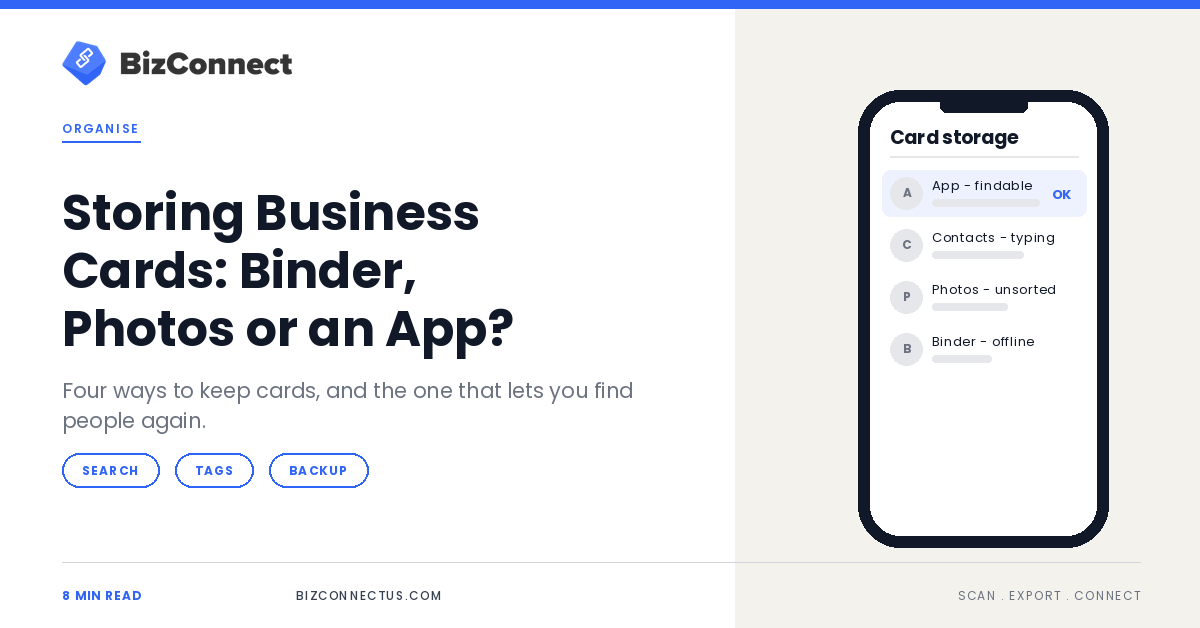
Each method solves part of the problem. A binder or card box keeps cards safe and in one place. Photos on your phone mean you never leave a card behind at the office. Typing cards into your phone’s contacts app makes them searchable. A scanner app does the typing for you and adds structure on top.
What separates them is what happens six months later, when you remember the logistics manager from the Dubai expo but not her name. The right system is the one that answers that question in seconds.
Binder vs photos vs contacts vs app
| Method | Searchable? | Backed up? | Effort per card | Good for |
|---|---|---|---|---|
| Binder or card box | No | No | Low | A few cards kept for formal or personal reasons |
| Phone photos | Only by date | If your photos are backed up | Very low | Capturing a card in a hurry |
| Contacts app | Yes | Yes | High: typing | A handful of cards a month |
| Business card app | Yes, with tags | Yes | Low | Regular networking and teams |
Low effort and high findability rarely come together, except with a scanner app, which is the whole reason the category exists. If you only receive a few cards a year, a contacts app is enough; once cards arrive by the handful after every event, typing stops being realistic.
Why photos are the trap
Photos feel like progress, which is why they are so common. But a photo of a card is not a contact. It cannot ring the number, it does not appear when you search a name, and within a week it is buried among holiday pictures. Our comparison of a card app versus a spreadsheet makes the same point about manual systems: the real cost is the cards that quietly never get entered.
Binders have the opposite problem. They are tidy and permanent, but they only work at your desk, only in the order you filed them, and only for you. Nobody else on your team can search a binder, and it does not travel to the meeting where you suddenly need a number.
A simple system for storing business cards
- Scan cards within 24 hours of meeting someone, while the context is fresh.
- Tag each contact with the event or project, such as “Gitex 2026” or “Supplier”.
- Add one line of notes: what you discussed and what you promised.
- Sync or export to the address book or CRM you already use.
- Keep the paper card only if it is unusual or important, and recycle the rest.
In BizConnect, groups or folders do the tagging, by event, industry or region, and search finds any contact in seconds. If you also use Google Contacts, its labels work the same way, and Google’s guide to contact labels shows how to set them up.
Clearing a backlog of old cards
If you have years of cards in a drawer, do not try to scan them all in one evening. Sort them into three piles first: people you still deal with, people you might, and people you will never contact again. Scan the first pile this week, the second over the following month, and recycle the third.
Tag the backlog by year or by the event you remember, even roughly. A tag such as “Pre-2024” is better than none, because it keeps old contacts from cluttering the list you use every day while leaving them one search away.
What to look for in the best app for business cards
Storage is only useful if you can get your contacts out again. Look for exports to the tools you use, such as Excel, Google Contacts, Outlook or your CRM, and for standard formats. The vCard format specification is how most address books exchange contacts, so an app that works with your address book keeps you from being locked in.
Two more checks: duplicates and sharing. Scanning the same person at two events is common, so read our guide to deduplicating card scanner contacts before your first big import. If colleagues collect cards too, choose an app that lets you share contacts and groups with your team rather than keeping private piles, the theme of turning one conference into a pipeline.
Finally, check that the original card image stays with each contact. It is your proof when a field looks odd months later, and it means you can recycle the paper without worrying that something important was lost in the scan.
Keeping your card library useful over time
A card library decays quietly. People change jobs, companies rebrand and numbers move. Set a reminder to skim your tags once a quarter, merge any duplicates, and update the contacts you deal with most. It takes a few minutes and keeps your list worth searching.
Notes are what make an old contact valuable. A line such as “met at the Riyadh expo, wants pricing for 20 seats in Q1” turns a name into a lead you can act on. The best app for business cards makes that note quick to add at the moment you scan, which is the only moment most people will do it.
“A binder stores cards. An app stores the people on them.”
— BizConnect
So, what is the best way to store business cards?
Keep paper for the few cards that carry meaning, and put the rest where you can search them. For most people that means a scanner app with tags, notes and exports. In other words, the best app for business cards is the one you will actually open within a day of every event. BizConnect is free to try on the App Store.
TL;DR
- Binders protect cards but cannot search them.
- Photos are fast but never become contacts.
- A business card app makes cards searchable, tagged and backed up.
- Scan within a day, tag by event, keep only special paper cards.
Frequently Asked Questions
Should I keep paper business cards after scanning them?
Keep the ones with unusual designs, handwritten notes or personal value, and recycle the rest once you have checked the scan. Most scanner apps keep the card image with the contact, so you still have a visual record if a detail ever looks wrong. A small box for the keepers is usually all the paper storage you need.
How do I store business cards on my iPhone?
You can photograph them, but a better route is a scanner app that saves each card as a contact. On iPhone, scanner apps can save to Apple Contacts, so the person appears in Phone, Messages and Mail, not just inside the app. Tag each contact by event so you can find everyone from one show later.
What is the best way to organise business cards for a small business?
Use one shared app rather than personal phones, agree on a tagging convention by event, region or product line, and set a rule that cards are scanned within a day. Shared groups mean anyone on the team can find a supplier or prospect, even one they never met themselves, and contacts stay with the business when an employee leaves.
How long should you keep business cards?
Keep the digital contact for as long as the relationship might matter, and review the list once a year for people who have changed jobs. Paper cards can usually go once they are scanned and checked. A card nobody has looked at in years is rarely worth the drawer space it takes up.
Can I store business cards in Google Drive?
You can upload photos of cards to Drive, and Drive can even convert a photo into text. That gives you a searchable archive, but it still does not create contacts or link them to your phone, email or CRM. It works best as a backup for card images rather than as your main contact system.