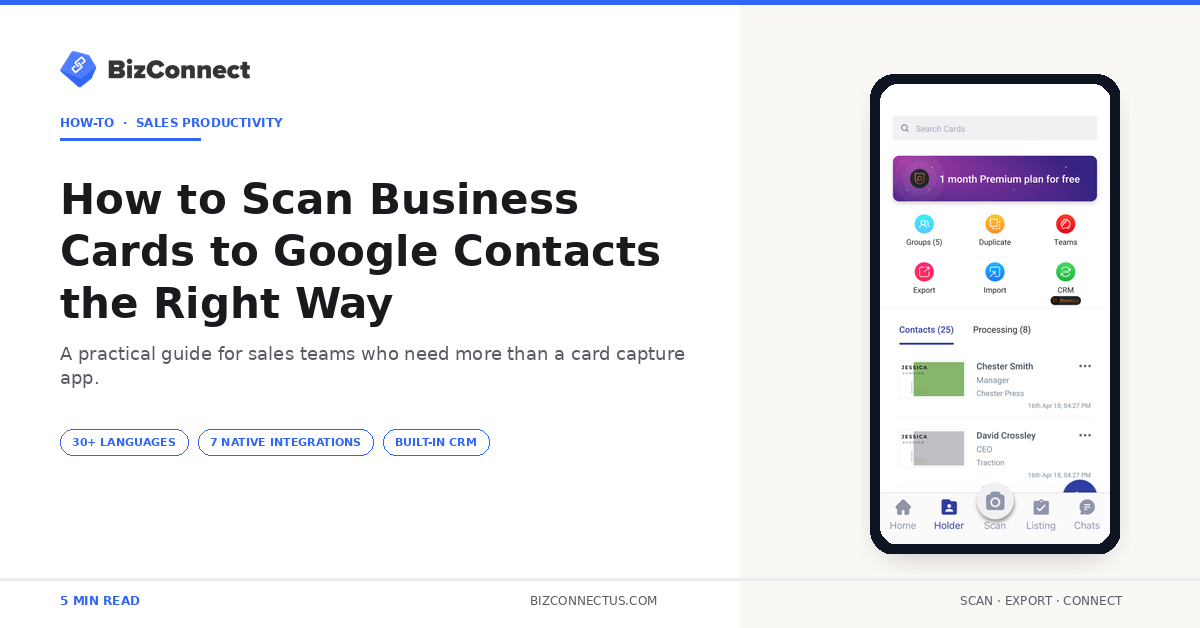
Google Contacts is quietly one of the most important address books in the world — it powers Gmail autocomplete, Android phonebooks, Google Workspace mail merges, and almost every Chrome-based CRM extension. So when you collect business cards at an event, the goal is rarely just a digital list — it is to scan business cards to Google Contacts so every device, every browser, and every team mailbox sees the new contact within minutes. Here is the BizConnect workflow that gets it right the first time, used by over 500,000 professionals since the app launched in 2016.
Why Google Contacts is worth syncing to first
Teams that scan business cards to Google Contacts through BizConnect tap into one of the cleanest contact pipelines in the industry. Sync to Google Contacts and the contact instantly appears in Gmail autocomplete on every device you sign into, in your Android phonebook, in Google Workspace shared directories (if you push to a shared group), and in any third-party tool that connects via Google login. That is dozens of touchpoints lit up from a single scan.
Google’s own Workspace contacts documentation explains how the sync chain works under the hood — it is one of the cleanest contact integrations in the industry, which is why BizConnect builds it as a flagship native export rather than a Zapier workaround.
Step 1 — scan the cards in BizConnect
Open BizConnect on iPhone or Android, tap Scan, and capture each card. Batch mode is your friend at conferences — scan rapid-fire, review afterwards. The 30+ language OCR extracts name, designation, company, phone, email, website, and address as structured fields, ready to push.
Before exporting, take a minute to tag the contacts. Add the event name, the booth or session where you met them, and a follow-up priority. Tags carry into Google Contacts as labels, which is how you will later filter for a mail-merge campaign or a segmented outreach push.
Step 2 — connect your Google account
In the export menu, choose Google Contacts. The first time, the app opens Google’s OAuth prompt — sign in with the account where you want the contacts to land (typically your work Workspace account, not personal Gmail). Grant the requested permission, which is limited to writing contacts only.
Once authorised, the connection is saved. Future exports through the BizConnect web dashboard go through with a single tap. You can revoke the permission anytime from Google Account → Security → Third-party access, useful if you switch jobs or stop using the app.
Step 3 — push to scan business cards to Google Contacts and verify
Tap Export to Google Contacts. BizConnect uploads each scan as a new contact in your Google address book. Contacts appear immediately in contacts.google.com, in your Android phonebook (after the next sync cycle, usually under a minute), and in Gmail autocomplete the moment you start typing the name.
Verify with a quick spot-check — open contacts.google.com and search for one of the names just scanned. Confirm the phone and email are correct. If a field looks off, edit it on either side and Google handles the bidirectional sync.
Step 4 — organise into labels (groups)
Google Contacts uses labels instead of folders. After import, select the new contacts, click Manage labels, and tag them with the event name or campaign name. Without labels, fresh contacts disappear into your existing 2,000-contact address book and you cannot pull them out for a targeted email next week.
If you tagged in BizConnect beforehand, the labels carry across automatically. That single step is what separates a clean contact import from a messy one that takes hours to untangle later. A step-by-step guide on how to scan business card into Google Contacts covers the label-mapping in more detail.
Common errors and how to fix them
Three issues come up. Duplicate contacts — Google Contacts has a built-in Merge & Fix tool that detects duplicates and combines them with one click. Permission errors — usually mean OAuth expired; reconnect the account in the app. Sync delays — the Android phonebook sometimes lags by a few minutes; force a sync from Settings → Accounts → Google → Sync now if you need contacts available immediately.
A 2024 Forrester report on sales tooling adoption noted integration friction is the top reason reps stop using new tools. A scanner with a clean Google Contacts pipeline avoids that friction entirely — which is why BizConnect maintains the integration as a first-class export, not a secondary feature.
How Google Contacts fits the wider sales stack
Google Contacts is rarely the final destination. For most sales teams it is the universal address book — the layer that feeds Gmail autocomplete, the Android phonebook, and Chrome extensions. From there, the contact usually flows onward into a CRM like Salesforce or HubSpot, into a marketing tool like Mailchimp, or into a customer support platform like Zendesk.
Treat Google Contacts as the layer keeping everyday communication smooth, and treat the CRM as the system of record for deals. BizConnect pushes to both in a single export step. Teams that also need a portable file use the matching Excel-export workflow at the same time. For the wider buyer logic, a deeper write-up on scanning to phone contact covers the same flow from a different angle.
When you scan business cards to Google Contacts at scale
For teams running multiple events per quarter, the Google Contacts pipeline becomes part of the operating rhythm. Every rep scans on the show floor, BizConnect syncs everything to a shared Google Workspace label by event, and the marketing team builds an outreach segment within hours of the show ending. The compound effect is that the team’s follow-up window shrinks from a week to under 48 hours.
Sales managers should set the Google Workspace label structure once — by event name and quarter — and reinforce the tag step with reps during onboarding. Without that hygiene, the contacts arrive correctly but the post-event segmentation falls apart. The right way to scan business cards to Google Contacts is procedural as much as technical.
The bottom line
When you scan business cards to Google Contacts through BizConnect, you should be done in under a minute per stack of 30 cards. Once the OAuth connection is set up, every future scan is one tap away from your full Google ecosystem — Android, Gmail, Workspace, Chrome extensions, the lot. Start with the free tier (50 cards a day) and watch your address book fill itself.